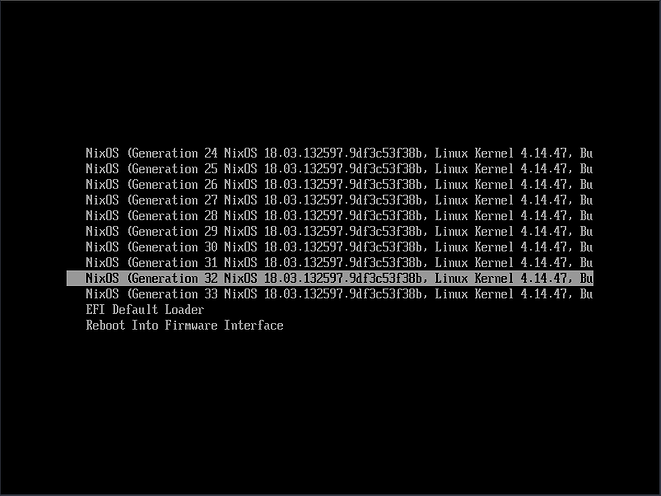
At this year’s Akademy (the yearly conference and gathering of KDE),
there were several talks about immutable Linux distributions born inside
KDE. The first, and more covered in the news was KDE Linux, the distro
with an officially sounding name. And the second one was KDE Neon Core,
which sounds like a continuation of KDE Neon, but is quite independent
of it.
Things shouldn’t come in twos. There needs to be another immutable
KDE distro, so I’m announcing the …
KDE Ni! OS
Now, this is a bit of a joke.
This is not really going to be a new distribution (for
real, not like KDE Neon claimed not to be a distribution back
in the day :) ). I don’t have the expertise nor the time to make a
distribution from scratch.
But, while listening to the presentations about KDE Linux and KDE
Neon Core, I had the idea to see how many of the planned features for
those distributions I could implement based on an already existing and
quite popular distribution called … if you have a keen eye, you might
have guessed based on the image above … NixOS.
Step 1: Immutability
At the crux of it, immutability (along with other related buzzwords)
means that you can not have an update break your system. There are no
half-updates, no mixing incompatible versions of packages, etc. And if
something gets broken with the new version, you can always roll back
your system to a previous version.
This comes out of the box with NixOS. It just does it in a different
way to other distributions. Its package manager allows installation of
as many versions of a single package as needed, and the user or a
running application “sees” only the versions they are compatible
with.
When you update your system, the old packages are still installed,
and you can reboot the computer into the pre-update state (previous
versions are called generations).
System generations
Booting into an old state doesn’t really do anything special, it just
makes you “see” the versions of the packages that were active in that
version of your system. You don’t even need to reboot most of the time –
if you see that a new version of LibreOffice doesn’t open your file
correctly, and you want to try with the previous version, just ask Nix
to launch the old version for you. The old version of LibreOffice is
still on your system even if you’ve not booted into the system version
(generation) it was installed on.
Steps 2..n
My main computer is (and always will be) Debian, but I’ve been using
NixOS on my laptop for months now. And it works quite well.
As NixOS can be installed or replicated from a single configuration
file, I plan to create a repository that will hold the definition of the
system on my laptop (aka, the reference installation of KDE Ni! OS :) )
and to keep it updated while I go through each of the steps of
simulating other distributions’ features.
This way, anyone who wants to have KDE Ni! OS on their computer will
be able to install it by installing NixOS and using this file for system
definition.
The next step will mainly be for developers – it will be about
replacing a system package with a version you (or somebody else)
developed. For example, if you want the Plasma Vault to behave a bit
differently, or to test a fix for a bug you found, any sane distribution
should allow you to do that easily, and without endangering the system
integrity (no sudo make install). So, KDE Ni! OS will have
to be able to do it as well.
KDE’s Gitlab setup has a branch naming rule that I always forget
about – branch names should start with work/ if you want
the server to allow you to rebase and push rebased commits (that is,
only work branches can be --force pushed
to).
I had to abandon and open new PRs a few times now because of
this.
Something like this is easy to check on the client side with
pre-commit hooks. (a pre-push hook can also be
used, but I like the check to be as early as possible)
A simple hook script that checks your branch name starts with
work/YOUR_USER_NAME (I like to have the username in the
branch name) is rather simple to write:
#!/bin/bashREPO_URL=$(git remote get-url origin)KDE_REPO_HOST="invent.kde.org"if[["${REPO_URL}"==*"${KDE_REPO_HOST}"*]];thenBRANCH=$(git rev-parse --abbrev-ref HEAD)BRANCH_REGEX="^work/$USER/.*$"if! [[$BRANCH=~$BRANCH_REGEX]];thenecho"Your commit was rejected due to its name '$BRANCH', should start with 'work/$USER'"exit 1fifi
It checks that the Git repository is on invent.kde.org,
and if it is, it checks if the current branch follows the desired naming
scheme.
KDEGitCommitHooks
But the question is where to put this script?
Saving it as .git/hooks/pre-commit in the cloned source
directory would work in general, but there are two problems:
Manually putting it into every single cloned KDE source directory on
your system would be a pain;
KDEGitCommitHooks, which is used by many KDE projects,
will overwrite the custom pre-commit hook script you
define.
The second issue is not a problem since a few hours ago.
KDEGitCommitHooks (a part of the
extra-cmake-modules framework) now generates a
pre-commit hook that, additionally to what it used to do
before, executes all the custom scripts you place in the
.git/hooks/pre-commit.d/ directory.
So, if a project uses KDEGitCommitHooks you can save the
aforementioned script as
.git/hooks/pre-commit.d/kde-branches-should-start-with-work.sh
and it should be automatically executed any time you create a new commit
(after KDEGitCommitHooks updates the main
pre-commit hook in your project).
For projects that do not use KDEGitCommitHooks, you will
need to add a pre-commit hook that executes scripts in
pre-commit.d, but more on that in a moment.
Git templates
The first problem remains – putting this into a few hundred local
source directories is a pain and error-prone.
Fortunately, Git allows creating a template directory structure which
will be reproduced for any repository you init or
clone.
I placed my template files into ~/.git_templates_global
and added these two lines to ~/.gitconfig:
[init] templatedir = ~/.git_templates_global
I have two KDE-related hook scripts there.
The above one is saved as
~/.git_templates_global/hooks/pre-commit.d/kde-branches-should-start-with-work.
And the second file is the default mainpre-commit
(~/.git_templates_global/hooks/pre-commit) script:
#!/usr/bin/env bash# If the user has custom commit hooks defined in pre-commit.d directory,# execute themPRE_COMMIT_D_DIR="$(dirname"$0")/pre-commit.d/"if[-d"$PRE_COMMIT_D_DIR"];thenfor PRE_COMMIT_D_HOOK in"$PRE_COMMIT_D_DIR"/*;do./"$PRE_COMMIT_D_HOOK"RESULT=$?if[$RESULT!= 0 ];thenecho"$PRE_COMMIT_D_HOOK returned non-zero: $RESULT, commit aborted"exit$RESULTfidonefiexit 0
It tries to run all the scripts in pre-commit.d and
reports if any of them fail.
This default mainpre-commit script will be
used in projects that do not use KDEGitCommitHooks. In the
projects that do, KDEGitCommitHooks will replace it with a
script that executes everything in pre-commit.d same as
this one does, but with a few extra steps.
The shell history can quickly become polluted with commands that are
only relevant for specific projects. Running specific unit tests from
project A, starting docker with services needed for project B, etc.
There are some Bash and Zsh scripts that allow you to have separate
histories for each directory you’re in which can be useful in situations
such as these, but the issue is that you get separate histories for each
directory instead of for each project. This means that you would get one
history when you are in project’s root directory, and another when
you’re in some subdirectory of said project.
Instead of creating a separate history for each directory you change
to, it creates separate histories only for directories that are ‘tagged’
with some custom file, be it .git, .envrc or
something else (it is customizable).
For any directory you change to, it will check if that directory or
any of its parents (it will search for the closest parent) contain the
‘tag’ file and it will use that directory as the project root thus
creating a separate history for it.
Installation and
configuration
You just create an array named PER_PROJECT_HISTORY_TAGS
that contains all the file names you want to be used for detecting the
project roots:
declare -a PER_PROJECT_HISTORY_TAGS
PER_PROJECT_HISTORY_TAGS=(.envrc .should_have_per_project_history)
declare -r PER_PROJECT_HISTORY_TAGS
In the example above, any directory that I defined custom environment
variables for using direnv’s .envrc will be treated as
project roots, along with any directory explicitly tagged with
.should_have_per_project_history.
This is useful when you have several source repositories inside of a
single project that should all have a common history, so you can’t use
.git as a tag to detect the project root.
If you don’t define your own tags, the default ones will be used
(.git .hg .jj .stack-work .cabal .cargo .envrc .per_project_history).
Then you just source the per-project-history.zsh file
from the plugin’s repository.
Or, if you use a plugin manager, add
ivan-cukic/zsh-per-project-history to the list of plugins.
For Zinit, it would look like this:
You might have noticed that Plasma keyboard shortcuts have been
changing recently with the aim to have everything KWin/Plasma be
Meta+Something.
Now, I tend to redefine most of the default shortcuts, so this didn’t
affect my workspace directly, but I liked the idea to have different
modifiers used depending on the category of /thing/ for which I’m
creating a shortcut.
An additional aim I had is to have a common shortcut ‘body’ for
equivalent actions in different categories, in order to more easily
build muscle memory with my new shortcuts.
Categories that I have are:
system (Plasma and such)
terminal application (Konsole, Kitty)
terminal multiplexer (TMux)
specific application (Firefox, Vim, …)
And these are the modifiers I’m trying out:
system: Meta+Anything and
Alt+Special keys
terminal application: Ctrl+Shift+Anything
terminal multiplexer: nothing special yet, just the
Ctrl+d as the leader
specific application:
working with tabs: Ctrl+Anything
other shortcuts: Alt+Normal keys
So, for example, the ; and ' as the shared
shortcut /bodies/ mean the following in different categories:
Meta+; and Meta+' – switch to next and
previous window (I’m using Krohnkite for tiling, so this is not like
Alt+Tab, but moving through the visible tiled windows);
Ctrl+Shift+; and Ctrl+Shift+' – would mean
switch to next and previous panes in the terminal application (I’m not
using this yet, as I don’t tend to use split views in terminal except in
TMux);
Ctrl+d ; and Ctrl+d ' – move to next and
previous panes in TMux;
Alt+; and Alt+' – move to next and
previous panes in an application (currently only in Vim and
Neovim).
So far, the approach seems to work Ok. I’ve quickly got accustomed to
the new window/pane navigation shortcuts.
The main problem are the programs that don’t allow changing shortcuts
(Firefox for example) or don’t allow creating shortcuts with some key
combinations (using Ctrl+; in Vim or Neovim does not work,
while it works with Alt).
Because of those limitations, the modifiers are not as clear cut as
they ideally would be. Ideally, each category would have its own single
modifier, instead of, for example, having a mix of Alt and
Ctrl in the /specific application/ category, and using a
modifier combination like Ctrl+Shift for the /terminal
application/.
I’ve also redefined all my Plasma and KWin shortcuts to be
location-on-keyboard-based, but more on that later.
I’ve written a small Neovim plugin which might be useful to people
who often work on several projects in parallel.
It activates a specific theme based on the project you are working on
(the current directory you start Neovim from).
It allows you to define which themes should be used for which
projects. The configuration is simple and allows specifying patterns for
matching project names (not full regex, but what Lua supports).
My configuration looks something like this (this is in Fennel, for
the Lua version, check out the readme):